








Introduction
How to Add A User in Google Merchant Center? Adding users in Google Merchant Center aids a business manager in running the business online. Others, such as teammates, freelancers, or agencies, can be granted access to your product listings or reports.
This article walks you through how to add a user in GMC with step-by-step instructions, the different access levels, commonly asked questions, and best practices, all backed by real-world sources.
Editor’s Choice
- Google Merchant Center allows businesses to manage product listings and advertise them on various platforms offered by Google, which include Search, Shopping, YouTube, and Maps.
- Roles include Super Admin with full control, Admin to manage users and settings, Standard to view listings and data, Email-only sends notifications, and Performance & Insights for report access.
- Enabling two-step verification will reduce unauthorised access risks; every method reports blocking 99.9% of hacks.
- If the invitation email has gone astray or is throwing an error for acceptance, usually, common remedies would be resending the invitation or verifying login with the right Google account.
- A regular audit of said users for their roles should be undertaken by every administrator so that they apply the principle of least privilege in keeping the Merchant Center account secure and sufficiently censored.
What is Google Merchant Center?
- Google Merchant Center is a tool through which retailers and e-commerce businesses upload and promote their products.
- Whenever the product is listed through the central tool, it will appear in places where buyers are looking to buy it: Google Search, Google Shopping, Google Images, Google Maps, and YouTube.
- When the product catalogue is uploaded to the Merchant Centre and is updated regularly, those updates get synced automatically across all these channels, which helps them to increase visibility and reach.
How Do I Grant Access To Google Merchant Center?
You need to grant access to someone if they are supposed to manage your Google Merchant Center account on your behalf.
Step 1:
- Go to the Merchant Center website and sign in to the account.
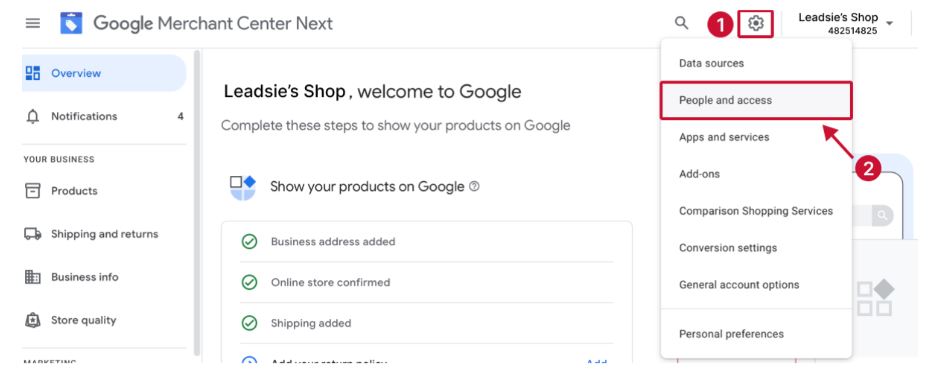
- Once signed in, in the upper-right corner of the screen, somewhat to the far right, you will see a small gear or cog icon denoting the Settings menu.
- Click on it, and you will be taken to your account settings, where user management and permissions can be handled.
(Source: leadsie.com)
Step 2: Choose “People and access” from the dropdown.
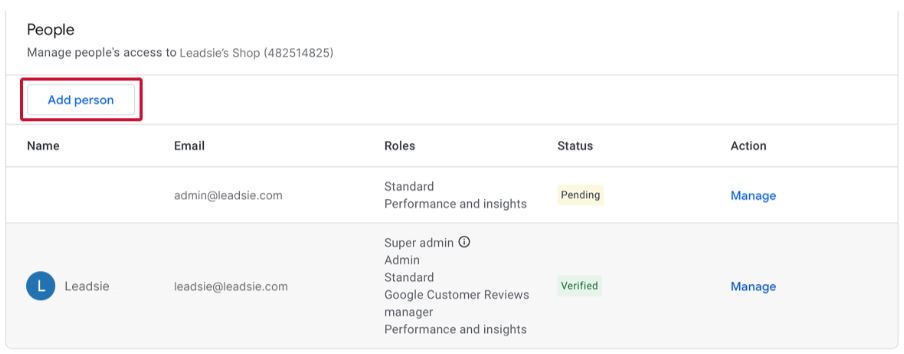
Step 3: Click on “Add person” to initiate inviting someone to your account.
(Source: leadsie.com)
Step 4: Invite and grant access to the person using their email address, then hit “Next.”
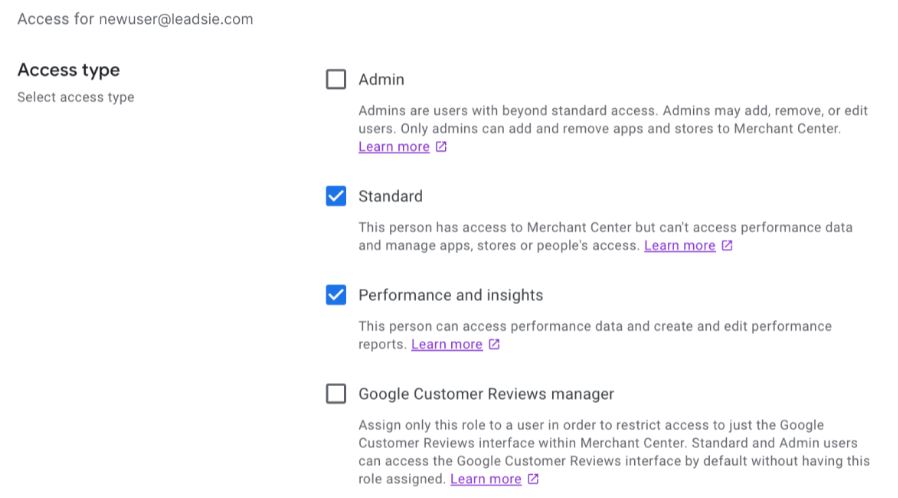
Step 5: Choose the right permission(s) for this user. They can be assigned to one or several levels of access, depending on what they will be doing in your account.
(Source: leadsie.com)
Step 6: And now go hit “Add user” at the bottom of the page to send the actual invitation.
Step 7: Your invitee would receive an email, wherein you should ask him to click “Accept” to verify it. And there you go! You’ve just successfully added a user/admin to your Merchants Center account.
Adding Users And Admins – Types of Roles Offered At Google Merchant Center
While managing your own Merchant Center account, roles can be assigned to team members, partners, freelancers, or other marketing agencies. These roles provide a means to control the level of access any individual can have, depending on the responsibilities they are assigned.
The Super Admin Access
- Users under Super Admin access are from the connected Business Manager profile and have the highest level of control.
- The Super Admins can add users, remove users, or edit user access whenever they want to, thereby providing absolute authority over the account.
Admin Access
- Admins can manage people, apps, and stores within Merchant Center, as well as add and remove user access or edit user permissions.
- This access can be given to a manager or team lead who needs full control but is not tied to the Business Manager profile.
Standard Access
- Standard users are able to view the product listings and account data, but they cannot administer users, nor have access to performance insights, reporting tools, or Google Ads linking.
- This role is often suitable for marketing agencies or freelancers working on advertising or campaign tasks.
Email-only access
- These users won’t have access to the dashboard but will receive important email notifications, reports, and alerts.
- This role fits stakeholders who need updates alone, but no hands-on access.
Performance & Insights Access
- This role lets users view, edit, and delete all custom reports alongside accessing data from existing performance reports.
- It tends to be used along with Standard Access since usually agencies that need a look at campaign results and performance tracking are involved.
How To Request Access To Your Google Merchant Center Account
An easy way to get access to the Merchant Centre account for whichever reason, be it managing product listings, working with performance data, or assisting with ad campaigns, is simply to ask. You can do it in a few short steps.
1. Contact the account setup owner
- Attempt to reach and contact the Google Merchant Centre Account Management or the Account owner.
- Tell them why you need access and if you intend to perform tasks such as updating product feeds or tracking the performance of campaigns.
2. Sharing Your Google Account Email
- Give the active email address of your Google Account.
- This email will be used to provide access; hence, ensure it is verified and the one you actively use to avoid any issues during the invitation.
3. Be Specific About What Level of Access You Require
Be as clear as possible about the access type you want. For example:
- Admin, if you want to have full control over users and settings
- Standard for managing product feeds only
- Email only for alerts and reports
- Performance and Insights to view reports and performance metrics
- Specifying your needs will make it clearer for the assigner when they assign your role.
4. Walk the Owner Through the Process
In case the owner is unfamiliar with the process, walk them through the steps of:
- Logging into a Merchant Centre account
- Go to Tools and Settings > Account Access
- Clicking Add Person, entering your email, selecting the appropriate role, and sending an invitation
5. Acceptance of Access Invitation
- When the invitation is sent, an email comes into your mailbox from Google.
- Go ahead and click on the link in the message, sign into your Google account, and accept the request for access to begin use of Merchant Center.
How To Assess Unauthorized Access Attempts In Google Merchant Center
- If you ever find any irregular activity or suspicious activity going on in your Google Merchant Center account.
- Things like login attempts from unfamiliar locations or sudden changes that you didn’t initiate-then chances are an intruder is in the house. That means somebody who isn’t supposed to be there is trying to gain access.
- Act quickly to preserve your account. One of the first things you have to do is report your situation to Google Ads Help by submitting a request about it.
- If you apply with the help of a dedicated Google account manager, inform them right away about the suspected unauthorised access.
- The moment anything suspicious is detected, Google can automatically suspend your Google Ads account to prevent further damage, in more serious cases.
- Google may even suspend your personal Google account temporarily. This means that you will lose access to all Google services linked to your account—including Gmail, YouTube, Google Drive, and Google Search Console—until they resolve the issue.
- If you get locked out of your account, as soon as possible, get in contact with Google support to restore your access and verification of your identity.
- Enabling two-step verification on one’s Google account is highly recommended to avoid these risks. It acts as an additional security measure requiring the second form of identification upon logging in. This can be via a code sent as a text message or generated from an app.
- As of 2024, Google affirms that an account that uses two-step verification has an almost 99.9% lower chance of getting compromised than one that does without use two-step verification.
Troubleshooting Issues
- For the most part, managing access within Google Merchant Centre is a fairly straightforward process; however, there are occasions when users will run into some of the common issues.
- The invitation e-mail not being received is one of them. If this happens, double-check that the e-mail address was entered correctly during the invitation process.
- It is also good for the invited user to check their spam or promotions folder, as the email might have been filtered there. If the message is still nowhere to be found, try to resend the invitation.
- Another mismatching issue arises when a user finds themselves unable to perform some tasks due to a lack of proper permissions.
- When this happens, the account admin should go into Merchant Centre and to Tools and Settings > Account Access to check on the user role. The admin may change the access levels to match the user’s duties, such as Admin, Standard, or Performance and Insights.
- At times, many also encounter issues while linking their Google Account with the Merchant Center.
- Usually, this can be solved by making sure that a person is logged into the right Google Account that got the invitation. Logging out of everything and back in again fixes most problems with the connection.
Conclusion
Introducing users to Google Merchant Center is a quick and safe process, given one follows the suitable steps and employs the correct access levels. Thus, within only 7 steps, it will become possible to add new collaborators and save them from unpleasant permission issues. Follow best practices to keep your team tight and your account safe: verify accounts, implement least privileges, and conduct regular access audits.

Sources